DocMargin for Google Docs™
Print Google Docs with comments in the margin, as a PDF
Every comment, reply and suggested edit lands next to the text it belongs to, like Word's Print Markup, and the PDF is saved in your Google Drive. Free for 3 PDFs a month; Pro is €9 a month.
Waiting for Google's review. Write to us, and we email you the day it opens.
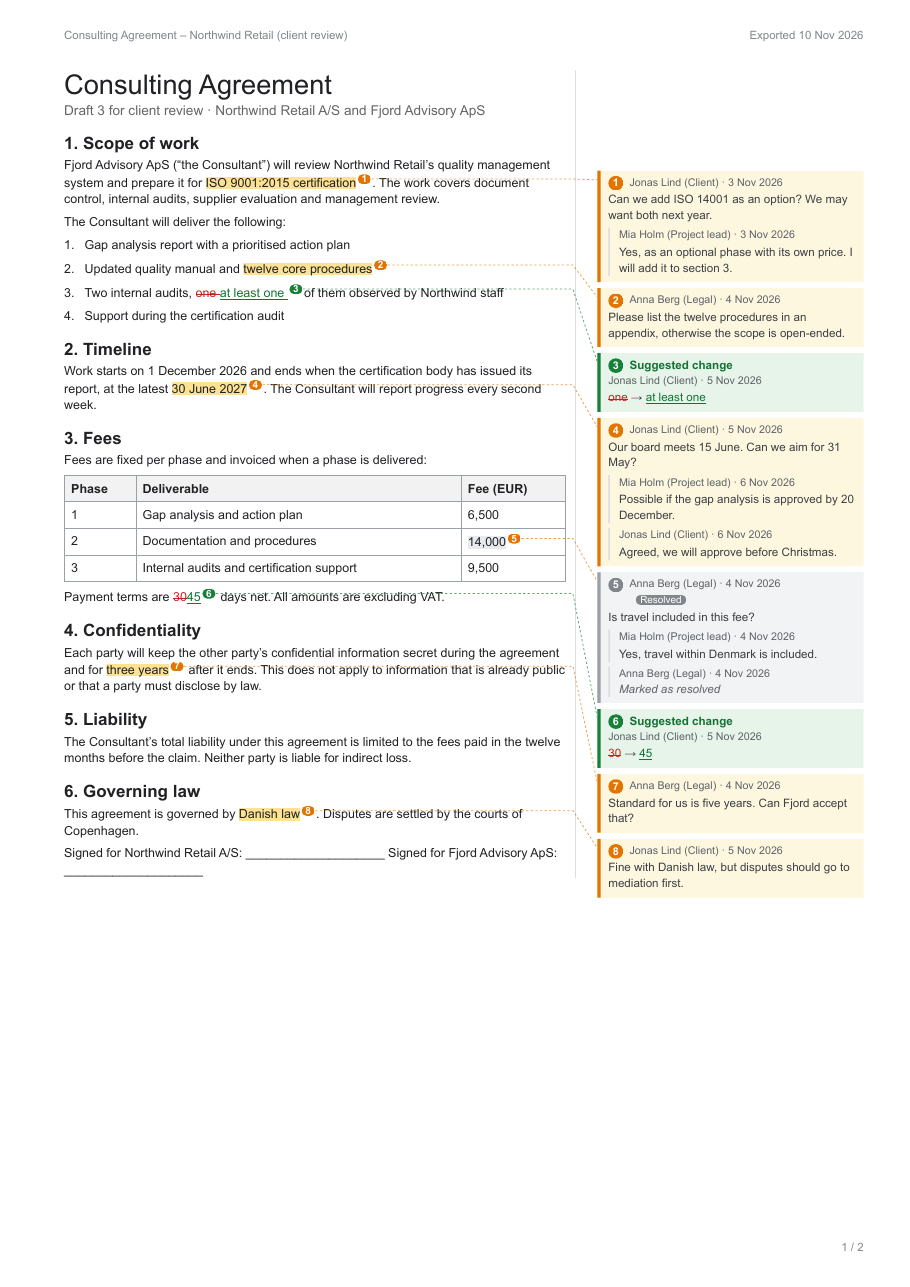
Your review deserves to travel with the document
In Google Docs, Download as PDF and Print leave out every comment and suggestion. So the notes your client, your colleagues or your auditor need to see are gone. The usual way around it is to convert to Word, or to take screenshots. DocMargin gives you the PDF you wanted in one click, from the document you already have open.
What's in the PDF
- Comments and replies in a right-hand margin, numbered and linked to the text they belong to, with author and date.
- Suggested edits as tracked changes: deleted text struck through, new text underlined.
- A Comment summary page at the end: open and resolved comments, replies, suggestions and who reviewed.
- Your document as it looks: tables, lists, headings, images and multiple tabs are kept.
- Landscape if you want a wider margin for long discussions.
See an example PDF (a consulting agreement under client review).
You choose what the reader sees
Include all comments, only the open ones, or none. Show suggestions as tracked changes, as if they were accepted, or not at all. Turn replies and the summary page on or off. The document itself is never changed, and the PDF is saved as a new file next to it in your Drive.
Made for people whose work is reviewed
- Consultants and lawyers: send a client the draft with every question and change in view.
- ISO and quality managers: keep review comments as audit evidence, in a file that does not change.
- Agencies: share client feedback rounds as one clean PDF.
- Editors and publishers: hand authors the full edit, notes and all.
- Teachers: give students their graded work with your comments next to the text.
Plans
Free
€0
for 3 PDFs a month
- Every comment, reply and suggestion
- Comment summary page
- All options
- Small “Made with DocMargin” line in the footer
Pro
€9
a month, or €84 a year
- Unlimited PDFs (fair use)
- No footer line
- Everything in Free
Team
€39
a month, or €390 a year, for your company
- Up to 10 people at your company email domain
- Unlimited PDFs (fair use)
- No footer line
- One subscription for the whole team
Prices in EUR, VAT added where it applies. Sold through Stripe. New users get Pro free for 14 days, no card needed. Cancel any time, and get a full refund within 14 days if it doesn't work for you.
How to download a Google Doc with comments
- 1
Install the add-on
Install PDF with Comments for Google Docs™ – DocMargin from the Google Workspace Marketplace.
- 2
Open a Google Doc and click the DocMargin icon
Open the document you want to print. Click the DocMargin icon in the side panel on the right of the screen.
- 3
Allow access to this document
Google asks once per document. DocMargin can then read this document and nothing else in your Drive.
- 4
Choose your options and click Create PDF with comments
Pick which comments to include and how to show suggested edits. A few seconds later, the PDF is in your Google Drive, next to the document.
Questions
How do I print a Google Doc with comments?
Install DocMargin, open the document and click Create PDF with comments in the side panel. You get a PDF with every comment in the right-hand margin, next to the text it belongs to. Print that PDF, or send it to your client.
Why does Download as PDF remove my comments?
Google Docs only exports the text of the document. Comments, replies and suggested edits are left out of both Download as PDF and Print. DocMargin reads them from the document and places them in the margin of the PDF.
Can I include resolved comments and suggestions?
Yes. Choose all comments, open comments only, or none. Suggested edits can be shown as tracked changes, as if they were accepted, or left out so you see the original text. Resolved comments are marked as resolved.
Where is the PDF saved and can others see it?
As a new file in your Google Drive, in the same folder as the document when possible, otherwise in My Drive. It is private to you until you share it. The document itself is never changed.
Is my document stored on your servers?
No. The document is sent to our PDF server over an encrypted connection, the PDF is built in memory and sent straight back. Nothing is written to disk, logged or used to train AI. We keep no copy of the document or the PDF.
How much does it cost?
Free for 3 PDFs a month, with every feature and a small “Made with DocMargin” line in the footer. Pro is €9 a month or €84 a year for unlimited PDFs. Team is €39 a month for up to 10 people at your company. New users get Pro free for 14 days, no card needed.
More help: DocMargin help and support. PDF with Comments for Google Docs™ – DocMargin is made by AddonNordic ApS, Aalborg, Denmark (CVR 46495985). Google Docs™ and Google Drive™ are trademarks of Google LLC; this add-on is not made or endorsed by Google.
Send your next draft with the comments in view
Open a document with comments, click Create PDF with comments, and the PDF is in your Drive a few seconds later.