Icons for Google Slides™ and Google Docs™
Icons for Google Slides™ in your brand colour, in one click
Search 17,000+ icons, pick your colour and click: the icon is on your slide, sharp at any size. Black, grey and white are free. Pro is €4 a month for every colour.
No card and no account. Your first icon is on the slide in under a minute.
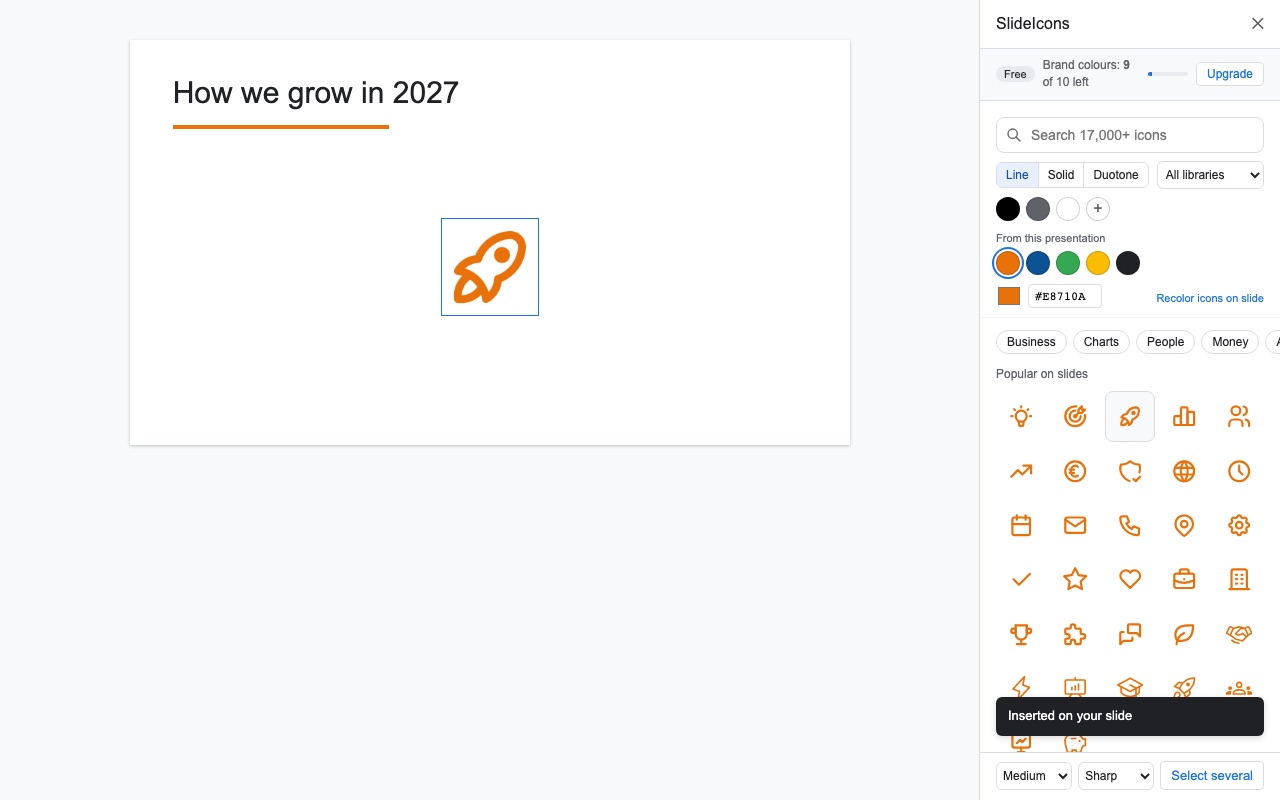
Your brand colour is already in the panel
SlideIcons reads the theme colours of the presentation you have open and shows them as colour buttons. One click on your brand colour, one click on the icon. Need another shade? Type the hex code from your brand guide, and save it so it is there in every presentation.
Find the icon you mean, even with a typo
Search by meaning, not by file name: growth, team, money, idea or security finds the icons people put on slides. Choose line, solid or duotone, and pick several icons for a process slide. They land in a row, evenly spaced.
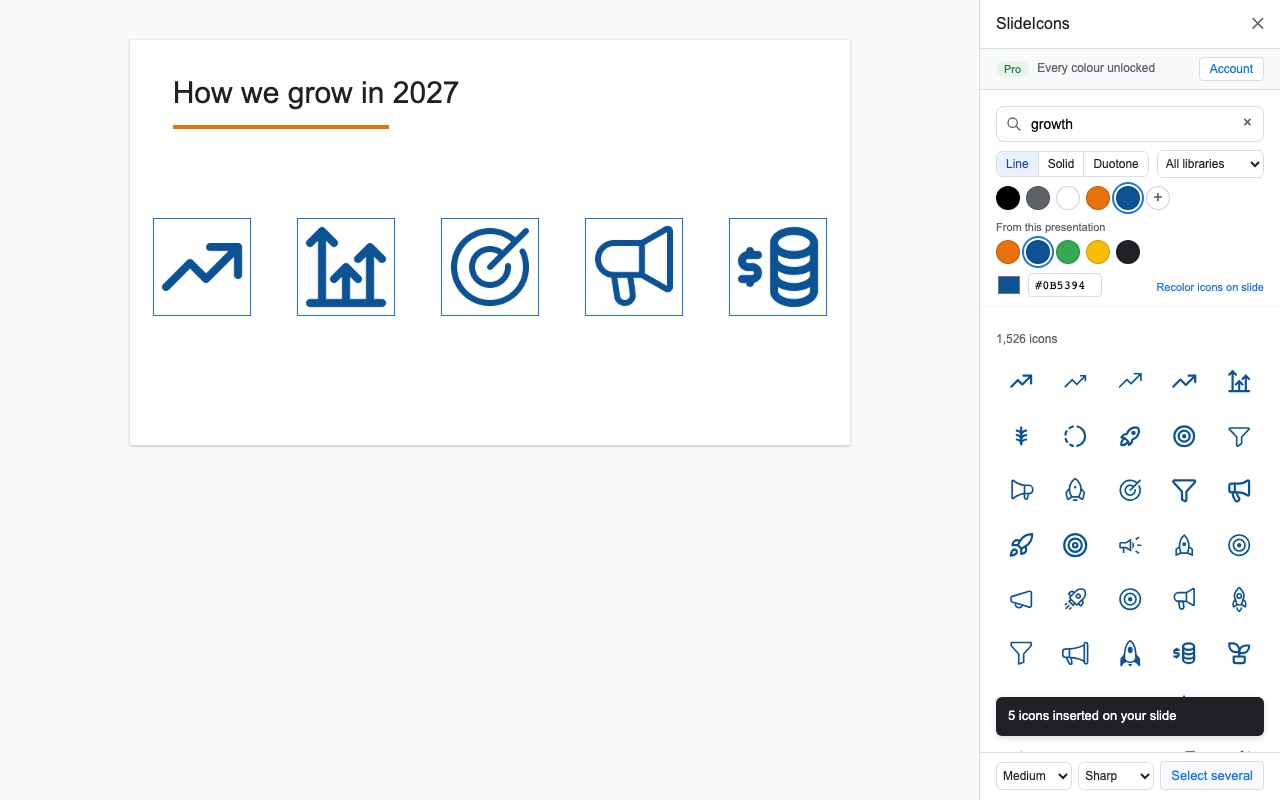
Change the colour of icons already on your slide
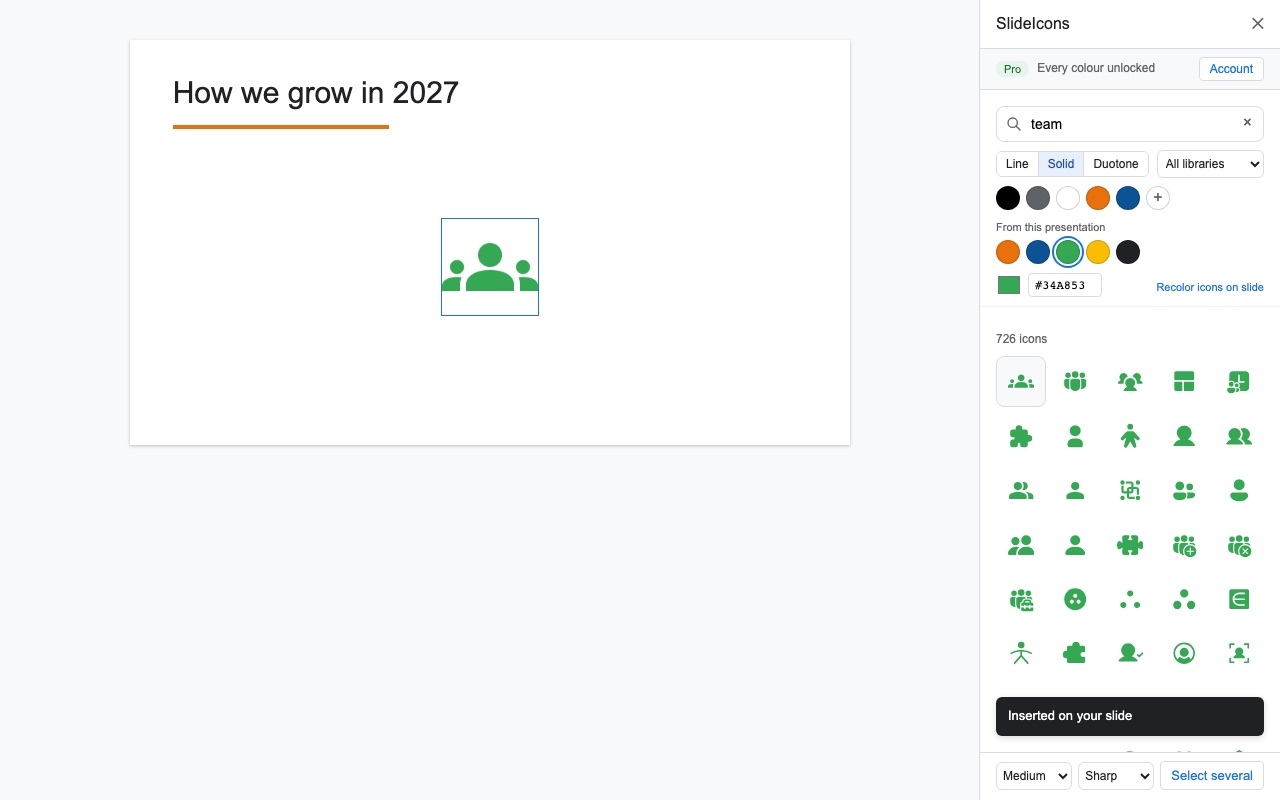
New brand colour, or the client wants green instead of blue? Select the icons, pick the colour and click Recolor icons on slide. Size and position stay exactly where you put them.
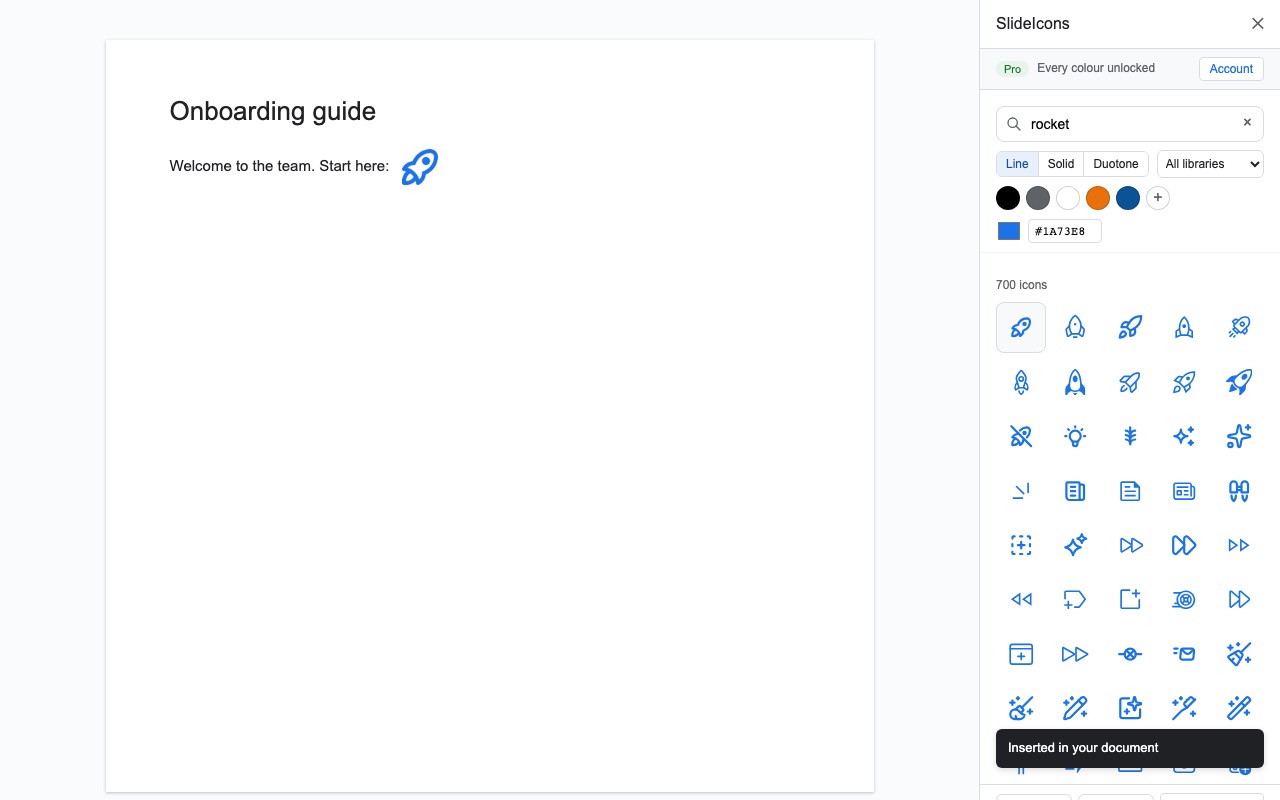
Google Docs™ too
Put the cursor where the icon should go and click. It sits in the line of text, in the size you choose, so guides, reports and onboarding documents look like they belong to your brand.
Use them in client work, without crediting anyone
The icons come from open-source libraries with licences that allow commercial use. The add-on only works in the file you have open and never sends your slides or documents anywhere.
Plans
Free
€0
14 days of Pro first, no card
- Every icon in black, grey and white
- 10 icons a month in any colour
- Google Slides™ and Google Docs™
Pro
€4
a month, or €29 a year
- Every colour, no monthly cap
- Your brand colours saved
- Up to 24 icons at once, lined up
- Recolor icons already on a slide
- Ultra sharp (up to 4096 px)
Team
€3
per person a month, from 3 people
- Pro for everyone on the team
- One shared brand palette in everyone's panel
- Add colleagues in the panel
Prices exclude VAT. Pro and Team are sold through Stripe; cancel any time in the panel.
Install SlideIcons for your whole team
A Google Workspace admin can install SlideIcons for everyone at once, so nobody has to install it on their own. It takes about two minutes.
- 1
Sign in to the Google Admin console as a super administrator.
- 2
Go to Apps → Google Workspace Marketplace apps → Apps list, and click Install app.
- 3
Search for SlideIcons, open it, and click Admin install → Continue.
- 4
Choose Everyone at your organization (or certain groups or organizational units) and click Finish.
It usually shows up for your users within a few hours (Google says up to 24). Not the admin? Send this page to whoever manages your Google Workspace.
Open SlideIcons in the MarketplaceHow to add icons to Google Slides™
- 1
Install SlideIcons
Click Install on the Google Workspace Marketplace page and choose your Google account. It works in Google Slides™ and Google Docs™.
- 2
Open the icon panel
In your presentation, choose Extensions → Icons for Google Slides™ & Docs™ – SlideIcons → Open icons. Popular icons are ready in the panel.
- 3
Pick your colour
Click one of your presentation's theme colours, a saved brand colour, or type any hex code.
- 4
Click an icon
It lands in the middle of your slide, sharp and already selected, so you can drag it into place. In Google Docs™ it lands at your cursor.
Questions
How do I add icons to Google Slides™?
Google Slides™ has no icon library of its own. Install SlideIcons, open your presentation, choose Extensions → Icons for Google Slides™ & Docs™ – SlideIcons → Open icons, search for a word like growth or team and click the icon. It is inserted on the current slide.
How do I change the colour of an icon in Google Slides™?
Pick the colour before you click the icon: your presentation's theme colours are shown in the panel, or type a hex code. To change icons that are already on a slide, select them, pick the new colour and click Recolor icons on slide. Size and position stay the same.
Are the icons free?
Every icon in black, grey and white is free, as many as you like, and 10 icons a month in any other colour are free too. The first 14 days you get every Pro feature without a card. Pro is €4 a month or €29 a year.
Why do my icons look pixelated?
Icons copied from the web are often small images that blur when you make them bigger. SlideIcons draws each icon from its vector source at 1024 px (Pro: up to 4096 px) in exactly your colour, so it stays sharp on a big screen and in PDF.
Can I use the icons in client work?
Yes. The icons come from open-source libraries (Tabler, Material Symbols, Phosphor, Lucide, Fluent UI, Bootstrap Icons and Iconoir) under MIT, ISC and Apache 2.0 licences, which allow commercial use without crediting anyone in your slides.
What can the add-on see?
Only the presentation or document you have open. It never sends the content of your slides or documents anywhere: our server in the EU only receives the icon you picked, the colour and the size.
More help: SlideIcons help and support. SlideIcons is made by AddonNordic ApS, Aalborg, Denmark (CVR 46495985). Google Slides™, Google Docs™ and Google Workspace™ are trademarks of Google LLC; SlideIcons is not made or endorsed by Google.
Put your first icon on a slide now
Install SlideIcons, open any Google Slides™ presentation and click an icon in your brand colour.